This week's release improves memory usage further. When bliss runs it builds an 'index' over your music files. This is so it can easily and efficiently work out where, for instance, all music files for a particular album are stored, all the tracks by a particular artist and similar information. Before, this information was all stored in computer memory. Now I have moved it onto your hard disk. For large collections of, say, 100,000 files, this yields a saving of about 70MB. Meanwhile, more memory work has been ongoing to make libraries of theoretically unlimited size to be supported. This work will hopefully be released next week.
In addition I tweaked how the size rule worked. Before, size was 'approximate'. Not only would bliss look for art +/- 10% of the rule size, but also it would resize down art to 10% over your stated maximum size. For the latter, it made little sense to resize to a size larger than you decreed, so instead for matters of compliancy all sizing is now 'strict'. The sizing is still approximate, however, for online searches, just so you can capture good art that is a few pixels too large/small.
The new build can be picked up at http://www.blisshq.com/download.html.
The Music Library Management blog has moved!
Please visit:
http://www.blisshq.com/music-library-management-blog/
and update your bookmarks.
Saturday, 19 June 2010


Tuesday, 15 June 2010
The benefits of Linux home servers
 I've discussed home servers before. Home servers are useful because they centralise, making data and services easier to manage. There are a number of different home server platforms available, but I choose Linux chiefly because of the power and flexibility it affords... not to mention it tends to work out cheaper.
Home servers centralise data (such as music files and documents) and services (such as home music servers and jukeboxes). This makes the data and services easier to manage, because they are all in one place. You don't need to remember where a particular album, or where your photos from Aunt Ethel's last visit, are stored. Backups run from just one place. If you ever want to access all of your music externally, just open your firewall to your music server.
There are a number of different ways that you can build home servers. You can go the generic route, or the specific one. Generic home servers are basically computers on which you install your own applications and invent your own file sharing structures. Examples of generic home servers are:
- Linux (subdivided into the various Linux distributions)
- Microsoft Windows Home Server
- Mac Mini
I chose Linux. Here's why:
Cheap
It's true that Linux is generally free at the point of installation. There are no licences to purchase (unless you happen to use a beefy enterprise level distribution, but that's unlikely for a home server). It runs on less powerful computers, meaning that you can recycle your existing, older computers.In general, because Linux can be operated without a graphical user interface, you save on the extra resources required to support said interfaces. You can strip a Linux box down to the bare essentials.
My current Linux server consumes about 50 watts. This supports 1.75TB of storage capacity, a video capture card, and a music server (VortexBox) in a virtual machine and a MythTV server. It could be more efficient because I could purchase more modern energy efficient hardware, but that would mean scrapping the existing hardware. My current calculations are that it would be cheaper to go with the existing hardware.
Powerful
'Power' is an overloaded word, but in this context I mean the ability to easily adminster the home server using a small set of common tools.Everything in Linux can be administered from the command line and configured in the file system. This consistency of approach means that you can use the functionality of the command line for different applications and data types. Linux comes with a set of de facto standard GNU software packages. These are generic tools and can be applied to different uses. For instance, I can use the 'find' command to list all recently added music onto my home server.
Flexible
Linux was built for server deployments. The fact that it can be run and administered purely through a command line interface means that it is easy to administer a Linux home server wherever you are. I've lost count of the times I've realised I forgot to bring some photos to share with family on a weekend away; with a Linux server it's very simple to log in and transfer these files.A number of the software tools that are available for Linux also speak of this pedigree. Using tools like cron and rsync for backups, generic tools as they are, make for a very flexible approach. If you fancy compressing those backups, just bolt gzip on the end. Because all the software talks to each other in a standard way, it allows different ways of solving problems.
Thanks to DeclanTM for his highly realistic home server portrayal!
Sunday, 13 June 2010
New release - 20100606 - Store backups of art before overwriting
This week's release allows a backup of existing art to be taken when new art is chosen by bliss. This is useful where bliss has judged your art to be uncompliant (e.g. it's too large) and has decided to fix this (e.g. shrink it). If you have the backup option activated, the original art will be saved in the same directory as the music, and then the resizing will proceed.
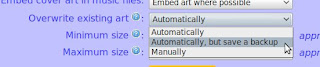
This is the "Add option to save preexisting cover before overwriting" feature suggested on our UserVoice forums. Thanks to everyone that voted.
The new build can be picked up at http://www.blisshq.com/download.html.

This is the "Add option to save preexisting cover before overwriting" feature suggested on our UserVoice forums. Thanks to everyone that voted.
The new build can be picked up at http://www.blisshq.com/download.html.
Tuesday, 8 June 2010
Fix missing iTunes album art with bliss
If you're an iTunes user, you may find that iTunes does not show album art for all of your music. A reason for this is that iTunes sources album art exclusively from the iTunes store. If your music isn't featured in the iTunes store, iTunes won't find the art. This is common for rarer releases, older releases, cover mounted CDs or bootlegs. It also affects music publishers who have not signed a deal with Apple, whether small (independent musicicans) or not so small (The Beatles!).
If art is missing, you need to either insert it manually (here's how) or use software like bliss to find the art and insert it for you. Here's a walkthrough of the latter.
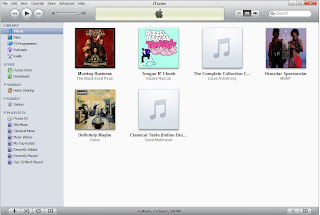
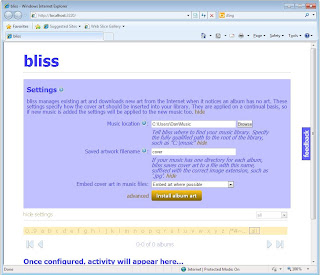
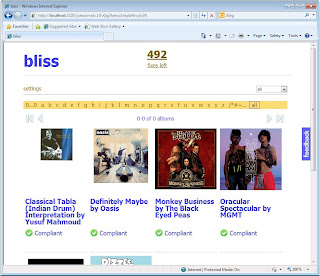
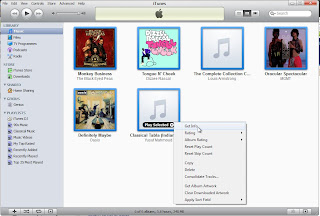
Right click on all the selected albums and choose 'Get Info'.
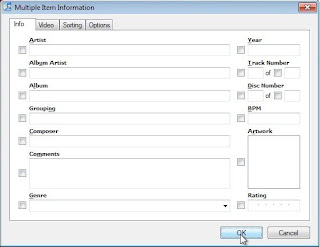
Don't click any of the check boxes - just click 'OK'.
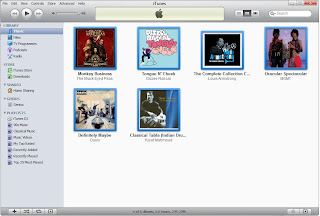
And finally we have our album art!
In the future, I'd like to streamline some of this in bliss. For instance, the latter stages where all of the albums are selected and you choose 'Get Info' could be avoided if bliss instructed iTunes it has updated the music files and to re-fetch the album art from the music files. If you want to see this kind of functionality, make a suggestion on the UserVoice pages.
That is how to use bliss to fix missing album art in iTunes.
If art is missing, you need to either insert it manually (here's how) or use software like bliss to find the art and insert it for you. Here's a walkthrough of the latter.


Right click on all the selected albums and choose 'Get Info'.

Don't click any of the check boxes - just click 'OK'.

And finally we have our album art!
In the future, I'd like to streamline some of this in bliss. For instance, the latter stages where all of the albums are selected and you choose 'Get Info' could be avoided if bliss instructed iTunes it has updated the music files and to re-fetch the album art from the music files. If you want to see this kind of functionality, make a suggestion on the UserVoice pages.
That is how to use bliss to fix missing album art in iTunes.
Sunday, 6 June 2010
New release - 20100529
This week's release adds the current art into the change art screen. I implemented this because our users had said they wanted to compare the current art to the alternatives bliss has found.
I also squashed a few bugs. There was an issue where, after changing art from one picture to another, bliss would show the old art, even though it had successfully changed the art as requested. That's fixed.
I also improved the page navigation links that were introduced last week. I now show graphical buttons, show the progress through the list (e.g. 0-12 of 394 albums) and disable buttons when they make no sense, e.g. disable the previous button when you are at the start of the list.
The release is available at http://www.blisshq.com/download.html.
I also squashed a few bugs. There was an issue where, after changing art from one picture to another, bliss would show the old art, even though it had successfully changed the art as requested. That's fixed.
I also improved the page navigation links that were introduced last week. I now show graphical buttons, show the progress through the list (e.g. 0-12 of 394 albums) and disable buttons when they make no sense, e.g. disable the previous button when you are at the start of the list.
The release is available at http://www.blisshq.com/download.html.
Wednesday, 2 June 2010
Organising 'Various Artists' album files
 Everyone has compilation albums featuring multiple artists in their digital music collections. How they are tagged and how the music files are organised is much more variable. This goes for both the differences between collections but also differences within collections.
It's the differences within collections that need fixing. If compilation track files are named with inconsistent artist names, for instance, they become harder to browse on your hard disk and so more difficult to administer and, potentially, listen to.
How should the files in 'Various Artists' compilation albums be arranged, then? The first step is that the file and directory names should be based on the tags located within the music files themselves, and when the tag changes, so should the file name or file structure.
The next step is to work out how you want the 'album artist' to appear for compilation albums. You could choose 'Various', 'Various Artists' or whatever (depending on your language of course!) but the important thing is that this applies consistently across your entire music library. The text you choose should be applied to the 'ALBUM_ARTIST' tag within your music files.
Once all your compilation albums have the same ALBUM_ARTIST tag, it's time to work out how this is applied to your file structures. Somewhere in your file structure you will probably have the artist name. A 'pattern' for the file organisation may be:
/[album artist name]/[album name]/[track name].mp3Or
/[album artist name]-[album name]/[album artist name]-[track name].mp3Wherever '[album artist name]' appears, your chosen artist name tag should appear.
The final decision to make is how to treat capitalisation and whitespace. The latter only matters if you choose an artist name with whitespace, for instance 'Various Artists'. Assuming you did choose 'Various Artists', how capitalisation and whitespace is treated would give you the following differing example file structures:
| Title case, allow spaces | /Various Artists/My Compilation/Intro.mp3 |
| Lower case, replace whitespace with underscores | /various_artists/my_compilation/intro.mp3 |
The keyword for managing music files is consistency. Consistency of how the artist for each compilation album is named, and consistency in how you treat capitalisation and whitespace when applied to file structures.
I wish you luck!
Thanks to Mulad for the image at the top of this article
Saturday, 29 May 2010
New release: build 20100523 - pagination
This week's release adds in pagination for the web UI. I added this in for two reasons.
First, a customer was experiencing memory problems because his library was so large that bliss was running out of memory just rendering the Web page! So I fixed that by breaking the UI into pages of twelve albums per page, with links to move left and right.
The second reason is that it makes the browsing view easier to navigate and less overwhelming.
I have a feeling some users may want to be able to view more than twelve albums at once. If so, add the suggestion to the bliss UserVoice page!
The new release is available at the download page.
First, a customer was experiencing memory problems because his library was so large that bliss was running out of memory just rendering the Web page! So I fixed that by breaking the UI into pages of twelve albums per page, with links to move left and right.
The second reason is that it makes the browsing view easier to navigate and less overwhelming.
I have a feeling some users may want to be able to view more than twelve albums at once. If so, add the suggestion to the bliss UserVoice page!
The new release is available at the download page.
Monday, 24 May 2010
A new customer testimonials page
This isn't about music library management per se, but it is about bliss. I just uploaded a customer/user testimonial page with some of the quotes from customers and users that I have gathered so far. Some of the praise has really put a smile on my face. Striving for a clean, correct, consistent digital music library seems to be a passion shared by many people!
I also created a couple of Delicious tags for bliss - bliss_press and bliss_testimonial.
Thanks for everyone's feedback!
I also created a couple of Delicious tags for bliss - bliss_press and bliss_testimonial.
Thanks for everyone's feedback!
Saturday, 22 May 2010
New release: build 20100516
This week's release fixes a problem where the cost, in terms of number of fixes, was being counted a little, er, 'eagerly' when performing manual changes.
It can be downloaded, as usual, from http://www.blisshq.com/download.html.
The recent blog posts may have hinted at this, but I've also been doing some background work on file organisation compliancy. This allows you to specify, in a rule, how your music files should be organised and it will tell you when they are uncompliant against that rule and, optionally, will automatically move/rename/whatever your files to make it compliant again!
It can be downloaded, as usual, from http://www.blisshq.com/download.html.
The recent blog posts may have hinted at this, but I've also been doing some background work on file organisation compliancy. This allows you to specify, in a rule, how your music files should be organised and it will tell you when they are uncompliant against that rule and, optionally, will automatically move/rename/whatever your files to make it compliant again!
Monday, 17 May 2010
Easy FLAC to MP3 mirroring with mp3fs
 Storing music in FLAC format is an excellent choice. It's higher quality than MP3 and, importantly, is 'lossless' which means you can always convert it to another format. Not all players support it though, so sometimes you need to have your same music in a different format. How do you accomplish this while not wasting time or storage space? mp3fs is a fully automatic and storage efficient way of keeping a copy of your FLAC library in MP3 format.
What are the other options for converting from FLAC to MP3? First, it can be done manually on a file by file or bulk basis. Some converters (or 'transcoders') work with a GUI while some work on the command line. Examples of both are dBpoweramp Music Converter and flac2mp3.
There are two problems with the manual approaches:
- They have to be run each time your music library changes, because they are manual. This can be mitigated by running the job periodically
- They use more storage space, because a separate copy of your FLACs in MP3 format are kept
First decide where you want your mp3s to be stored. Let's say you want them stored in /mnt/music/mp3. This should be an empty directory. Now, choose your FLAC directory. Let's say this is /mnt/music/flac:
gravelld@gravelld-laptop:~$ ls /mnt/music/flac
Alison_Balsom    Mint Royale    Oasis     Suede                  Various
Louis_Armstrong  Nelly_Furtado  Pendulum  The_Chemical_Brothers
Meanwhile:
gravelld@gravelld-laptop:~$ ls /mnt/music/mp3
gravelld@gravelld-laptop:~$
Nothing in there yet! So, let's weave some mp3fs magic:
sudo mp3fs /mnt/music/flac,192 /mnt/music/mp3
Now:
gravelld@gravelld-laptop:~$ ls /mnt/music/mp3
Alison_Balsom    Mint Royale    Oasis     Suede                  Various
Louis_Armstrong  Nelly_Furtado  Pendulum  The_Chemical_Brothers
And interestingly:
gravelld@gravelld-laptop:~$ sudo ls /mnt/music/mp3/Oasis/Definitely\ Maybe
01-Rock 'N' Roll Star.mp3  07-Bring It On Down.mp3
02-Shakermaker.mp3         08-Cigarettes & Alcohol.mp3
03-Live Forever.mp3        09-Digsy's Dinner.mp3
04-Up In The Sky.mp3       10-Slide Away.mp3
05-Columbia.mp3            11-Married With Children.mp3
06-Supersonic.mp3          cover.jpg
These are FLAC files stored in the FLAC directory, but now they appear to be MP3 files too. The important bit here is that these MP3 files are not actually stored on the hard disk. Rather, each time you access the MP3 directory or files therein, mp3fs mimics the directory structure or creates the MP3s on-the-fly. This means:
- You don't need to tell mp3fs when the music library has changed
- There's no extra storage space required to store your MP3 mirror of your FLAC files
That is how I mirror my FLACs to MP3s on my Linux home server, and I haven't had to think about it again since.
Sunday, 16 May 2010
New release: build 20100510
The most obvious changes in this week's release are bug fixes, but in the background I've begun work on a file organisation rule (hence the recent thoughts about how to organise music files!).
The first bug fix was annoying glitch in the way IE8 rendered new albums on a blank page - it would render them all in one column. This is now fixed.
I also improved the detection of multiple instances of bliss running in Windows 7. Before there was opportunity to launch multiple versions.
Finally, I improved the recognition of 'album directories'. Before, if the artist name was in the directory name in addition to the album name, the directory would not be considered an album directory. It does now.
The new release is available, as ever, at http://www.blisshq.com/download.html
The first bug fix was annoying glitch in the way IE8 rendered new albums on a blank page - it would render them all in one column. This is now fixed.
I also improved the detection of multiple instances of bliss running in Windows 7. Before there was opportunity to launch multiple versions.
Finally, I improved the recognition of 'album directories'. Before, if the artist name was in the directory name in addition to the album name, the directory would not be considered an album directory. It does now.
The new release is available, as ever, at http://www.blisshq.com/download.html
Monday, 10 May 2010
Don't organise music files by genre
 Don't use the genre of your music as a basis to organise your music files. Genre is inherently wholly, ambiguous and subject to change. As such, it does not make a good candidate for organising music files and directories.
I can see why some digital music lovers include genre information in their music file structures. Genre is interesting, it's a way of categorising music that makes sense for choosing playlists. To this end, music playing software and hardware allows you to browse your music library by genre. So why shouldn't you organise files by genre too?
The trouble is that file and directory structures don't lend themselves to structures where the names may change. Genre, because it's inherently wholly and ambiguous is one of the more frequently altered aspect of music meta-data. Music players often identify music by the file path of the music. Changing the file path when you decide to change the genre may reset information about the music stored in the music player, such as play counts, ratings and more.
It's important that meta-data communicated in your file and directory structures are the same as the data within your embedded music tags, give or take file system limitations. This means that when the genre for your music changes it should change both the tags and anywhere else the genre is communicated. If genre is in your file structure, this means changing your file structure too.
You may also wish to assign multiple genres to tracks and albums in your music library. This is perfectly possible and a valid thing to do using tags within the music files. However, because file structures are hierarchical, you can only pick one genre to organise by. Remembering why your chose the one-you-did is difficult, and leaves the potential for further problems at a later date.
So how should music files be organised? I think some level of categorisation is important, because music file organisation is often needed as a fallback when performing some administration tasks and also for music players that are incompatible with your music tags. We need to choose music meta-data that is better suited to use in file structures. This is meta-data that is less subject to change.
I choose to organise files within artist/album directory structures. These data, specifically the ALBUM_ARTIST and ALBUM_NAME tags, generally do not chage and the structure is layered enough to be sortable and navigable. All other meta-data such as genre, year, style and mood are stored within the music files themselves so that I can use them inside my music players.
And that is why you shouldn't use genre in your music file/directory structures.
Thanks to feverblue for the image used at the top of this blog post
Saturday, 8 May 2010
New release: build 20100502
A few minor-ish bug fixes this week.
I introduced the 'why?' link to the album grid a few weeks ago. Before, when revealing the details of what made an album compliant, the details inherited the tick or cross icon from the overall compliancy. Now, the tick or cross is related to the detail. Generally speaking, if just one detail has a cross (is uncompliant) then the whole album is.
I also did some work to improve the startup experience for VortexBox users using bliss. VortexBox is a home jukebox appliance. Andrew at VortexBox has set bliss up as a beta integration. With just a couple of commands you can add bliss to your VortexBox, and have it managing its album art. Read more here and here.
The new versions are available in the usual place!
I introduced the 'why?' link to the album grid a few weeks ago. Before, when revealing the details of what made an album compliant, the details inherited the tick or cross icon from the overall compliancy. Now, the tick or cross is related to the detail. Generally speaking, if just one detail has a cross (is uncompliant) then the whole album is.
I also did some work to improve the startup experience for VortexBox users using bliss. VortexBox is a home jukebox appliance. Andrew at VortexBox has set bliss up as a beta integration. With just a couple of commands you can add bliss to your VortexBox, and have it managing its album art. Read more here and here.
The new versions are available in the usual place!
Tuesday, 4 May 2010
How to name music files
 Naming music files is important. Without a consistent and correct naming scheme your music files will be hard to organise. In some music players it can make music difficult to select. This blog post describes how I name my music files.
In general, information about a track should be stored inside the file itself, in 'tags'. However, you should also keep some of the same information about a track in its filename. Sometimes you must organise or play your music via software that only reads filenames, not the internal tags embedded within. An obvious example is a file explorer such as Windows Explorer. Less obvious is where you use a music player that does not support the tags your music files contain. For instance, Nokia mobile phones running Symbian v9.2/Series 60 v3 have no support for ID3v2.4 out-of-the-box.
Importantly, the information in the filename must be the same as the information embedded in tags in the music file. If they are different, life will soon get very confusing.
So long as your music files are named correctly, you can organise or view them in any application. It's a great fallback!
What should be included in a music file name?
First, the name of the song! This is most important, because without the name you don't know what music is contained within the file.Also important is the track number within the track's album. This is important so that files are ordered correctly by file name. If you are queuing music to play by selecting files in a file explorer, this is the only way they can be selected to play in order. It's also good to left pad the number with '0's, e.g. 01, 02... 10, 11 so that tracks are not ordered 1, 10, 11, 2, 3 and so on.
Optional are album and artist names. I think these are only required in flat music directory structures. I, on the other hand, store music files in an artist/album manner. This means they aren't required in the file names.
In theory you could also include genre, and other tags. However, this would make the filename long and more difficult to read. It also opens a greater possibility of inconsistency between the filename and internal tags, because tags like genre are more likely to change than tags like track name or track number.
It's generally worth removing spaces in your filenames. This isn't always required, but you may find some applications don't work well with your music if they contain spaces. Ditto for Unicode characters outside of the 'normal' range for your computer.
How your music files' names should read
In my music collection, files are named:[track number]-[track name].[file extension]For instance:
02-The_Landing.flacNote:
- The track number comes first - this means the files are correctly ordered
- The track number is padded with a zero. This helps where there are more than nine tracks
- The track name is there. It's space is replaced with an underscore '_'
- The track number and name are separated by a hyphen
So that's sorted then...
Unfortunately not. Remember what I said about the information in the filename being the same as the information in the tags? The real pain comes when you have a large music collection. If you want to change how your filenames are formed, or you want to change some of the information itself that is in both the filename and tags, then replicating the two can be a tedious and error prone process. Worst, you may just give up (but who could blame you?!). Existing tools like Jaikoz, Tag & Rename and MP3Tag help with this, although they don't generally operate in a fully automated manner.I am hoping to introduce music file management to bliss. soon. As you'd expect, this will be management by rules, so you will state how your files should be named and bliss will rename them in bulk for you (or at least tell you where an album's tracks are not compliant with the name rule).
And that is how I name my music files.
Thanks to Velo Steve for the photo used at the top of this post.
Sunday, 2 May 2010
New release: build 20100425 - faster, faster!
This week's release has some improvements to make bliss's Web based UI a lot more efficient when viewing large music libraries. Before it would consume a lot of memory and CPU power on the computer where bliss is running. This can be a problem where people run low power servers. Now, bliss should take less CPU power when the Web interface is being viewed, and a bit less memory too.
Also, this release has the fix for iTunes libraries I described a week or so ago. Remember that after using bliss to embed art in your music files, iTunes must be told about the new art. The easiest way is:
Download the latest build at blisshq.com!
Also, this release has the fix for iTunes libraries I described a week or so ago. Remember that after using bliss to embed art in your music files, iTunes must be told about the new art. The easiest way is:
- In iTunes, select each album whose art you installed/changed
- Right click and choose 'Get Info'
- Click OK on the resulting dialog box (don't click any of the check boxes)
Download the latest build at blisshq.com!
Monday, 26 April 2010
Bulk resizing album art
Size matters. Some MP3 players don't show album art if it's too large. Some music lovers don't want album art that is too small.
If you have a large music collection, resizing album art can be a pain. You may have hundreds or thousands of albums for which the album art must be resized. Resizing all of those images is bad enough, but if the art is embedded in your music files you also need to extract the art from each track, resize it and then re-embed it. This is a tedious, time consuming task.
Resizing album art with bliss is simple. bliss is rule based, so with the album art rule you specify the constraints your album art should obey. Let's try an example where we shrink art to be no bigger than 300x300 pixels.
The bliss UI shows that our collection's art is currently compliant:
 Here I've exposed the '(why?)' link for each of the top albums, to show the current size of my album art.
Now I set a rule that art should be no larger than 300x300 pixels. (bliss adds 10%, by the way, to make sure slightly larger art is not ignored when searching for alternative art).
 We click 'Apply rule' to... apply the rule. bliss starts working through my music collection, resizing art that is over 300x300 pixels in size. Once complete, all art is reported as compliant:
 Bulk resizing of album art with bliss is easy. Just set the size constraints and you're done. Changed your mind? Change the setting again, one click is all it takes. This is the power of rule based music management.
If you have a large music collection, resizing album art can be a pain. You may have hundreds or thousands of albums for which the album art must be resized. Resizing all of those images is bad enough, but if the art is embedded in your music files you also need to extract the art from each track, resize it and then re-embed it. This is a tedious, time consuming task.
Resizing album art with bliss is simple. bliss is rule based, so with the album art rule you specify the constraints your album art should obey. Let's try an example where we shrink art to be no bigger than 300x300 pixels.
The bliss UI shows that our collection's art is currently compliant:
 Here I've exposed the '(why?)' link for each of the top albums, to show the current size of my album art.
Now I set a rule that art should be no larger than 300x300 pixels. (bliss adds 10%, by the way, to make sure slightly larger art is not ignored when searching for alternative art).
 We click 'Apply rule' to... apply the rule. bliss starts working through my music collection, resizing art that is over 300x300 pixels in size. Once complete, all art is reported as compliant:
 Bulk resizing of album art with bliss is easy. Just set the size constraints and you're done. Changed your mind? Change the setting again, one click is all it takes. This is the power of rule based music management.
Sunday, 25 April 2010
New release: build 20100417
I just got back from Venice in time to release a new version of bliss!
This version has some improvements with the way bliss handles music collections with large folders with hundred of tracks in.
There are a number of UI cleanups after last weeks new 'compliancy' changes. For instance, I made sure the 'why?' link only appears when assessment is complete.
Miscellaneous tracks stored within a folder were previously being reported as uncompliant, because we couldn't save a separate file for the track as well as embedding art. I fixed that, so now it will be reported as compliant - if the track is in a directory which cannot be ascertained to be the canonical directory for the album then bliss will not consider this when assessing compliance.
Also when resizing art bliss wasn't doing it proportionally, so I fixed that.
A user asked me to make sure that even when an album's art isn't compliant, the art is still shown. I added that in.
Get the new download from http://www.blisshq.com/download.html!
This version has some improvements with the way bliss handles music collections with large folders with hundred of tracks in.
There are a number of UI cleanups after last weeks new 'compliancy' changes. For instance, I made sure the 'why?' link only appears when assessment is complete.
Miscellaneous tracks stored within a folder were previously being reported as uncompliant, because we couldn't save a separate file for the track as well as embedding art. I fixed that, so now it will be reported as compliant - if the track is in a directory which cannot be ascertained to be the canonical directory for the album then bliss will not consider this when assessing compliance.
Also when resizing art bliss wasn't doing it proportionally, so I fixed that.
A user asked me to make sure that even when an album's art isn't compliant, the art is still shown. I added that in.
Get the new download from http://www.blisshq.com/download.html!
Tuesday, 20 April 2010
Using bliss with iTunes - viewing embedded art in iTunes
A customer found a problem viewing embedded art in iTunes which had been embedded by bliss into MP3s.
This is down to the way bliss embeds art into MP3s. The ID3v2 specification describes some information that should be stored with embedded art.
iTunes requires the MIME type of the art to include a subtype. Previously, bliss would embed art with just the MIME type "image". However, iTunes requires a more specific MIME type, such as "image/jpeg" or "image/png" depending on the type of the image.
I've fixed this, and the new build is under test by the customer in question. bliss now fully populates the MIME type, and for good measure populates the picture type of the art to 'type 3' - cover (front).
The build with this fix in will be available in ten days. Any other users wanting to try it out should get in touch and I'd be pleased to forward it onto them.
This is down to the way bliss embeds art into MP3s. The ID3v2 specification describes some information that should be stored with embedded art.
iTunes requires the MIME type of the art to include a subtype. Previously, bliss would embed art with just the MIME type "image". However, iTunes requires a more specific MIME type, such as "image/jpeg" or "image/png" depending on the type of the image.
I've fixed this, and the new build is under test by the customer in question. bliss now fully populates the MIME type, and for good measure populates the picture type of the art to 'type 3' - cover (front).
The build with this fix in will be available in ten days. Any other users wanting to try it out should get in touch and I'd be pleased to forward it onto them.
Saturday, 17 April 2010
New release: build 20100410
This week's build adds some features to the way bliss reports 'compliance'.
bliss now says whether each album is compliant/uncompliant with respect to your settings in the album art rule, and why. For instance, the most basic aspect of the album art rule is 'there must be album art'. Therefore if there is none, and bliss can't find any it should install automatically, the album is marked as uncompliant and left for you to choose from the alternatives available.

Each album is marked 'Compliant' or 'Uncompliant', and if you hover over the album a little link appears '(why?)' which gives you more detail as to why bliss thinks your album is or isn't compliant.
Another aspect is the sizing of art. The current size is always included in the 'why?' list. If you have sizing enabled as part of your rule, and the art is outside of that size, you may see this marked as too large or too small.
I'm trying to further the idea that bliss understands your rules and can apply them to your library; it lists where music conforms to your rules (compliant) and where it doesn't (uncompliant) and where possible makes your music compliant, if it can find a way.
A couple of smaller fixes are in this build. I fixed a bug where the art resizer was not resizing proportionally. Also, I fixed an unsightly bug where some art in the change art screen was reported to have -1x-1 size.
The new build can be downloaded at http://www.blisshq.com/download.html. Existing licences apply!
bliss now says whether each album is compliant/uncompliant with respect to your settings in the album art rule, and why. For instance, the most basic aspect of the album art rule is 'there must be album art'. Therefore if there is none, and bliss can't find any it should install automatically, the album is marked as uncompliant and left for you to choose from the alternatives available.

Each album is marked 'Compliant' or 'Uncompliant', and if you hover over the album a little link appears '(why?)' which gives you more detail as to why bliss thinks your album is or isn't compliant.
Another aspect is the sizing of art. The current size is always included in the 'why?' list. If you have sizing enabled as part of your rule, and the art is outside of that size, you may see this marked as too large or too small.
I'm trying to further the idea that bliss understands your rules and can apply them to your library; it lists where music conforms to your rules (compliant) and where it doesn't (uncompliant) and where possible makes your music compliant, if it can find a way.
A couple of smaller fixes are in this build. I fixed a bug where the art resizer was not resizing proportionally. Also, I fixed an unsightly bug where some art in the change art screen was reported to have -1x-1 size.
The new build can be downloaded at http://www.blisshq.com/download.html. Existing licences apply!
Tuesday, 13 April 2010
Automatic digital music workflow with VortexBox - (part three) ripping, tagging and album art
I've been trying to streamline my digital music workflow. That is, remove as many manual steps from my current CD-to-FLAC workflow as possible:
 I've been using VortexBox to automate these steps. In previous blog posts I've described how to install VortexBox in a VMware home server environment and how to integrate VortexBox with an existing music collection. This week I complete the story by describing my new digital music workflow, from CD to FLAC to listening pleasure.
I start by inserting a CD, but instead of inserting it in the VortexBox's CD drive, I insert it in my laptop's. Because this is a virtualised home server, and the VortexBox runs inside a VMware virtual machine, I can link my laptop's CD drive so it appears to be the VortexBox's, and the VortexBox proceeds none-the-wiser. A real concern for home server users is access to the home server. If the server with VortexBox is elsewhere in the house, perhaps in an attic, basement, locked cupboard or similar it can be tedious to access it and add and swap CDs, so it is useful to reuse the CD drive on more accessible computers.

Choose 'Client Media', 'Connected' and then choose the CD drive you wish to use. You must have VMware Tools installed in the guest to forward a CD device.
Now I insert a CD in my laptop and I watch the VortexBox ripper screen to make sure the rip is proceeding correctly. The screen updates with the progress of the rip:

You can see that the music has been automatically recognised. This means that as the digital music files are saved to the hard disk they are tagged so that Squeezebox and other music players can display the correct album name, artist name, track name and so on.
What about album art? VortexBox has its own facility for fetching album art, but I'm going to use bliss. If I take a look at bliss's activity, we can see that the new music has been automatically recognised, album art downloaded and installed as-per my album art rule.

Now the most important bit... listening to the music! VortexBox automatically rescans its internal Squeezebox Server when the rip is complete, so the new music, with its album art, shows up automatically too!

So that's it. Here's what I used to do to rip one CD:
I've been using VortexBox to automate these steps. In previous blog posts I've described how to install VortexBox in a VMware home server environment and how to integrate VortexBox with an existing music collection. This week I complete the story by describing my new digital music workflow, from CD to FLAC to listening pleasure.I start by inserting a CD, but instead of inserting it in the VortexBox's CD drive, I insert it in my laptop's. Because this is a virtualised home server, and the VortexBox runs inside a VMware virtual machine, I can link my laptop's CD drive so it appears to be the VortexBox's, and the VortexBox proceeds none-the-wiser. A real concern for home server users is access to the home server. If the server with VortexBox is elsewhere in the house, perhaps in an attic, basement, locked cupboard or similar it can be tedious to access it and add and swap CDs, so it is useful to reuse the CD drive on more accessible computers.

Choose 'Client Media', 'Connected' and then choose the CD drive you wish to use. You must have VMware Tools installed in the guest to forward a CD device.
Now I insert a CD in my laptop and I watch the VortexBox ripper screen to make sure the rip is proceeding correctly. The screen updates with the progress of the rip:

You can see that the music has been automatically recognised. This means that as the digital music files are saved to the hard disk they are tagged so that Squeezebox and other music players can display the correct album name, artist name, track name and so on.
What about album art? VortexBox has its own facility for fetching album art, but I'm going to use bliss. If I take a look at bliss's activity, we can see that the new music has been automatically recognised, album art downloaded and installed as-per my album art rule.

Now the most important bit... listening to the music! VortexBox automatically rescans its internal Squeezebox Server when the rip is complete, so the new music, with its album art, shows up automatically too!

So that's it. Here's what I used to do to rip one CD:
- Insert CD
- Run 'abcde' on the command line
- Choose the tags from CDDB
- Copy the resulting FLACs to my music server
- If I have more CDs, go back to step 1
- Rescan the Squeezebox Server
- Insert CD
- Wait for the CD to pop out, if I have more CDs go back to step 1
Subscribe to:
Posts (Atom)

